Leveling Up
When your character gains a level, the sheet does the bookkeeping for you. Your class hands you your features as you level. The level up dialog collects the few decisions that are actually yours to make, then applies everything at once.
Starting a level up
Enable the sheet's editing toggle, then click the Level Up button in the sheet's sidebar (the rising arrow). The button is disabled if the character has no class or is already level 20.
What the dialog asks
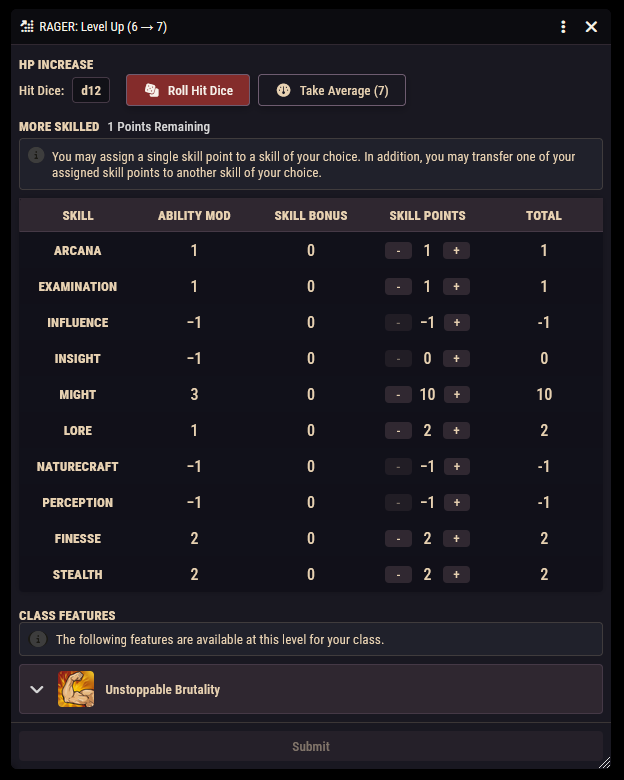
The dialog title shows the jump you're making (for example, "Level Up (2 → 3)"). Depending on the level, you'll see some or all of these sections:
- HP Increase. Your hit die is shown (including any die size bonuses from features). Choose Roll Hit Dice (the die is rolled with advantage and your maximum HP goes up by the result) or Take Average for the fixed value shown on the button. Either way, your current HP rises by the same amount and you gain one hit die.
- Ability score increase. At levels where your class grants a stat increase, pick the ability (or abilities, when the class offers two) to raise.
- Skill points. Assign exactly one new skill point. You may also move one existing point from one skill to another at the same time. No skill can go above 12 points.
- Subclass. When leveling to 3, choose your subclass. Its features arrive along with the level.
- Class features. Features your class grants at the new level are listed and added automatically; if the class offers a choice at this level, pick from the options shown.
- Spells. New spells arrive automatically, or you pick spell schools or individual spells, depending on what your class grants at this level.
- Epic boon. When leveling to 19, choose an epic boon.
The submit button stays disabled until every required selection is complete. Hover it to see what's still missing.
The summary chat card
Completing a level up posts a "Level Up Summary" card to chat showing the level jump and your HP increase, labelled either "Rolled" (with the dice available to inspect) or "Chose Average".
Leveling down: the undo button
The Revert Last Level Up button (the undo arrow next to Level Up) walks back your most recent level up. The system keeps a history of every level up, so the confirmation window can show you exactly what will be reverted: the HP and hit die you gained, skill and ability increases, and any features, spells, and boons that the level granted (plus your subclass, when reverting from level 3).
One step at a time
Reverting only undoes the most recent level up. To go back several levels, revert repeatedly. The button is disabled when there is no level up history to revert, for example on a character whose level was set by hand rather than through the dialog.
Manual edits are not tracked
Only changes made through the level up dialog are recorded in the history. Items you added or numbers you edited by hand are untouched by a revert.