The Character Sheet
The player character sheet puts everything you touch during play (HP, hit dice, mana, rolls, items, spells) one click away. This page tours the sheet from top to bottom.
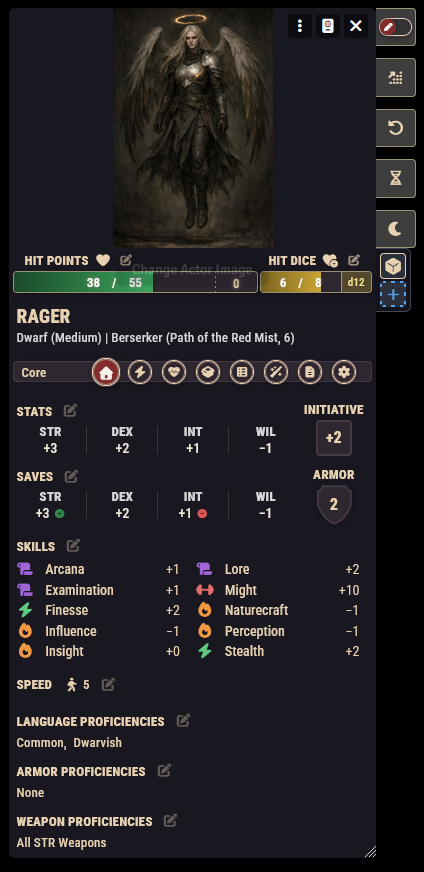
The header
The header is always visible, whatever tab you're on:
- Portrait and wounds. Your character art sits on the left, ringed by droplet icons, one per wound your character can take. Click a droplet to mark or unmark wounds. A wound counter also appears next to the Hit Points heading whenever you have at least one.
- Hit Points bar. Shows current, temporary, and maximum HP. Click the numbers to edit them. The heart icon cracks when you're at half HP or less (Bloodied).
- Hit Dice bar. Shows your remaining hit dice out of your total, with buttons to roll them and adjust the current count.
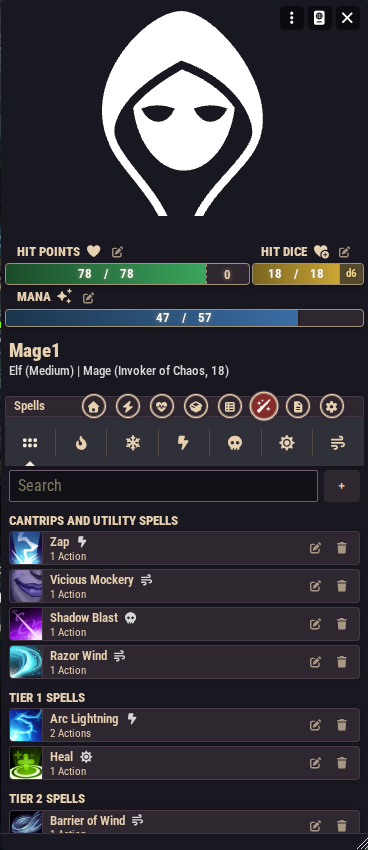
- Mana bar. Appears only if your class uses mana. Shows current and maximum mana.
- Name and summary line. Your ancestry, size, class, subclass, and level.
The sidebar buttons
A column of buttons overhangs the left edge of the sheet:
- Editing toggle. The sheet opens locked. Flip this pen/padlock switch to enable editing. This reveals the configure buttons (for HP, hit dice, mana, proficiencies, saving throws, and so on) and the level up and level down buttons.
- Level Up and Revert Last Level Up. Only visible while editing is enabled. See Leveling Up.
- Field Rest (hourglass) and Safe Rest (moon). See Rest & Recovery.
- Action tracker. During combat, once you've rolled initiative, a column of pips appears showing your remaining actions. Click a pip to spend or recover an action. Characters with dice pools or charges (from certain features) get a matching tracker below it. See Dice pools and charges.
Tabs
Core
Your numbers, and the place you roll from:
- Abilities: click an ability score to roll an ability check.
- Saving throws: click a save to roll it. Saves can carry a default advantage or disadvantage (from your class or ancestry); with editing enabled, the edit button opens a window where you can adjust each save's default roll mode and bonus, or reset them to what your class and items say they should be.
- Initiative: click the initiative value to roll it. If a combat is running, this also handles joining it.
- Armor and movement speeds.
- Skills: click a skill to roll a skill check.
- Proficiencies: languages, armor, and weapons, each editable while editing is enabled.
All of these open a roll window first. See Dice Rolls & Chat Cards for what its options mean.
Actions
Your heroic actions and reactions, expandable so you can read what each does. You can drag an action from here to the macro hotbar for one-click access; see Macros & the Hotbar.
Conditions
Every condition the system knows, with the ones affecting you highlighted. Search, filter to active only, and toggle conditions on or off. Any other temporary or passive effects on your character are listed here too. See Conditions.
Inventory
Your equipment and loot. Click an item's icon to use it (attack with a weapon, drink a potion); this posts a chat card. Each item has an equip toggle. You can create new items here or drag them in from the compendiums.
Features
Your class features, subclass features, ancestry, background, and boons, grouped by category. Click a feature's icon to use it and post its details to chat.
Spells
Your known spells. When you know spells from two or more schools, a school filter appears. Click a spell's icon to cast it. Spells that can be upcast open a window asking how much mana to spend, with a preview of what the extra mana buys.
Bio
Freeform character details: age, height, weight, gender, and notes.
Settings
Per-character sheet options: portrait positioning and scale, whether item macros run when you use an item, whether item images are shown, and inventory slot tracking.
Dice pools and charges
Some features give you a resource that lives on the sheet rather than on a chat card. Both kinds appear as a tracker under the action tracker.
Charges are a simple count, like 1 use per turn or 3 per safe rest. The pip shows what you have left and refills on whatever the feature says. Using a feature that costs a charge spends it for you, and if you have none left the use is blocked with a message explaining why.
Dice pools hold rolled dice, and each die remembers the number it came up with. A Berserker's Fury Dice are the clearest example: you Rage, dice go into the pool, and they add to your attacks until the Rage ends.
Clicking the pool opens its panel, which does two jobs:
- Editing. Adjust a die's value, or discard one, when something at the table needs to be corrected by hand.
- Using features. Any feature that draws on this pool is listed. Expand one, pick the dice you want, and confirm. What confirming does depends on the feature: most spend the dice you picked and post the result (damage reduced, spaces you may move), while a few change a die instead, raising it to its highest value and leaving it in the pool. For those, dice already at their maximum are greyed out, and you only get as many picks as the feature allows, so choosing another die swaps your selection.
Features that open this panel do so when you use them: click the feature on the Features tab and the panel opens with that feature already selected. If your sheet is closed, it opens for you.
Drag to the hotbar
Drag any item (weapon, spell, feature) or any heroic action onto Foundry's macro hotbar to create a macro that uses it directly. See Macros & the Hotbar.