Weapons, Armor & Gear
The best way to learn the item sheet is to build something with it. On this page you will build a Flaming Longsword from scratch: an ordinary longsword that deals 1d8 + Strength slashing damage, plus an extra 1d6 fire damage. Along the way you will meet every part of the sheet: the item kinds, weapon properties, armor, consumables, and charges.
Learn from the compendium
Every weapon, armor piece, and magic item that ships with the system is built with exactly the tools described here. When in doubt, open something similar from the Items or Magic Items compendium and look at how it is configured. Duplicating a compendium item and editing the copy is often faster than starting blank.
Step 1: Create the item
In the Items tab of the sidebar, click Create Item, name it Flaming Longsword, and pick the Object type. "Object" is the catch-all type for physical gear: weapons, armor, shields, potions, torches, wands, and anything else a character can carry.
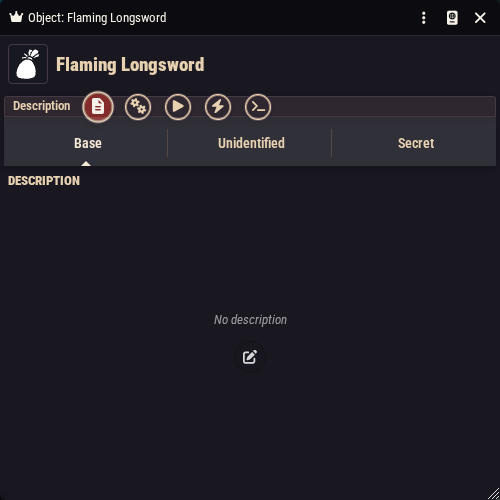
The item sheet opens with five tabs:
- Description: the text players read, in three flavors (more below).
- Config: what the item is, covering kind, price, inventory size, and weapon properties.
- Activation: what happens when a player uses the item, such as rolls, damage, saves, and conditions. See Item Activations & Effects.
- Rules: passive effects the item applies just by being carried and equipped. See Rules Builder Basics.
- Macro: an advanced scripting slot; see Macros.
Step 2: Choose the kind of object
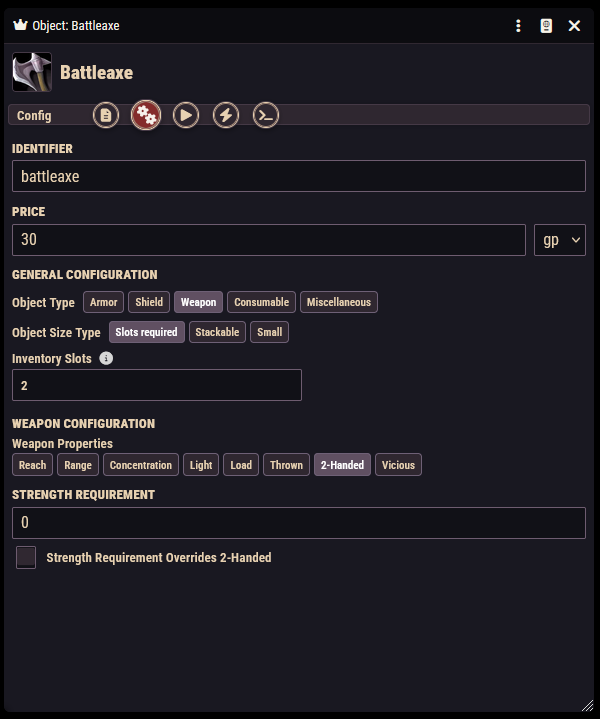
On the Config tab, the Object Type row offers five kinds. The choice changes what the rest of the sheet shows and how the item behaves in the inventory:
| Kind | What it unlocks |
|---|---|
| Weapon | A whole Weapon Configuration section with weapon properties (see step 3). |
| Armor | No extra fields. Protection is added on the Rules tab (see the armor section below). In the inventory, the item gets a shield-shaped equip toggle. |
| Shield | Same as armor. Carrying a shield also lets rules elsewhere in the system detect "this character has a shield". |
| Consumable | Behaves like other items, but healing effects on consumables benefit from any "healing potion bonus" rules the drinker has. |
| Miscellaneous | Everything else: tools, trinkets, wands. A wand is just a miscellaneous object with an activation. |
For the Flaming Longsword, pick Weapon.
Below the object type you will find fields shared by every kind:
- Identifier: a machine-friendly name used by rules and formulas. You can usually leave it blank.
- Price: a number plus a coin denomination (cp, sp, or gp).
- Object Size Type controls how the item occupies inventory space:
- Slots required: the item takes a fixed number of inventory slots. Set Inventory Slots below it; the compendium longsword uses 2, and potions use 0.5.
- Stackable: multiple copies merge into stacks. Set Stack Size (minimum 2). Dropping another copy onto a character increases the quantity instead of creating a duplicate.
- Small: small items counted by quantity rather than slots.
Step 3: Weapon properties
With Weapon selected, a Weapon Configuration section appears with a row of toggleable properties: Concentration, Light, Load, Range, Reach, Thrown, 2-Handed, and Vicious. What each property means in play is a game-rules question (see the Nimble rulebook), but some of them unlock extra fields on the sheet:
- Range adds a range configuration section.
- Reach adds a reach configuration section.
- 2-Handed adds a Strength Requirement field, plus a checkbox for "Strength Requirement Overrides 2-Handed" (for weapons a strong character can wield in one hand).
- Thrown adds a Thrown Range field.
For the Flaming Longsword, toggle 2-Handed, set the Strength Requirement to 2, and tick the override box, matching the ordinary longsword from the compendium.
Step 4: Damage (the Activation tab)
You may have noticed there is no "damage" field on the Config tab. Damage is part of what happens when the weapon is used, so it lives on the Activation tab, in the Effects sub-tab.
The short version for our sword:
- On Activation → Core, set the Activation Cost to 1 Action.
- On Activation → Targets, describe the targeting (target count, restrictions).
- On Activation → Effects, add a Damage effect: formula
1d8+@strength, damage type Slashing, with Can Miss and Can Crit ticked. - Add a second Damage effect for the magic: formula
1d6, damage type Fire.
That second damage entry is the whole "flaming" part. When a player clicks the sword, the chat card shows both the slashing roll and the fire roll, each with its own apply button. The Activation tab has much more depth (nested on-hit effects, saving throws, conditions), and it is covered step by step on Item Activations & Effects.
Formula references
Formulas can reference the wielder's statistics: @strength, @dexterity, and friends are ability modifiers, @level is character level, and @key is the highest key ability of the character's class. See Formulas & References.
An alternative way to add the fire damage is a Damage Bonus rule on the Rules tab. Rules are the right tool when the bonus should be conditional ("only against undead", "only while raging") or should apply to other attacks the character makes. See Rules Builder Basics and the bonuses reference.
Crits and weapon proficiency
A weapon can carry a weapon type (for example "Longsword") in its data. If it does, a wielder whose class does not grant proficiency with that type can still attack, but cannot score critical hits. Weapons with no weapon type set skip this check entirely, so anything you create by hand works for everyone unless you copy an item that has a type set.
Armor and shields
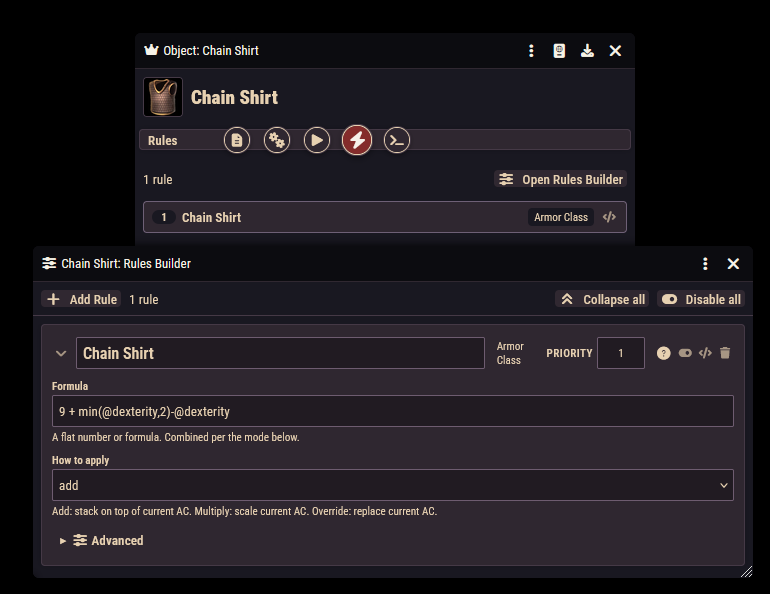
Armor protection is not a number typed on the armor's sheet. It is a rule. A character's armor starts at their Dexterity modifier ("unarmored"), and every equipped item with an Armor Class rule adds its contribution on top, or overrides the value entirely.
Open the Chain Shirt from the compendium and look at its Rules tab: one Armor Class rule with the formula 9 + min(@dexterity,2)-@dexterity and mode add. Combined with the Dexterity base, this produces the classic "9 + DEX (max 2)". A rule can instead use mode override to replace the base value, or multiply.
To build your own armor:
- Create an Object and set the Object Type to Armor (or Shield).
- On the Rules tab, click Open Rules Builder and add an Armor Class rule with your formula and mode.
Equipping matters: the equip toggle in the character's inventory switches all of an item's rules on or off. Unequipped armor protects no one.
Consumables and charges
A consumable is an object that does something when used and is expected to run out. The compendium Healing Potion is the template to copy: Object Type Consumable, size 0.5 slots, and an activation with a single Healing effect of 2d4+4 costing 1 Action. When a player drinks it with no target selected, the healing is applied to their own token by default.
Quantity is yours to manage
Activating a consumable does not automatically reduce its quantity. Have players adjust the quantity field in their inventory, or delete the item, when a consumable is spent.
For items with limited uses that recharge, such as wands and once-per-rest trinkets, use charges instead of quantity:
- A Charge Pool rule (Rules tab) gives the item a pool: a maximum (which can be a formula), a starting value, and recovery entries such as "refill on safe rest".
- A Charge Consumer rule makes every activation of the item automatically spend charges from a pool.
- Alternatively, a Pool effect on the Activation tab can spend, fill, or clear a pool only when the item is used in a particular way.
A Charge Pool on its own never spends anything: activating an item that only has a pool leaves its charges untouched. If the item should pay a charge each time it is used, add a Charge Consumer rule (or a Pool effect) alongside the pool.
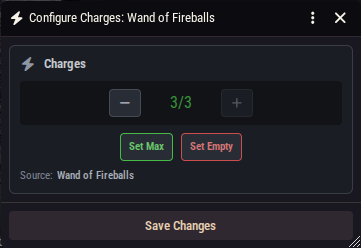
Both rule types are documented in the resources reference. Once an item has a charge pool, its owner can open a charge window from the character sheet showing each pool as a card with plus/minus buttons, a click-to-edit current value, and Max / Empty shortcuts. Saving the changes posts a chat message recording the adjustment, so the table can see the wand tick down.
Descriptions
The Description tab holds three separate texts:
- Description: what everyone sees.
- Unidentified: shown on the item's chat card in place of the real description while the item is flagged as unidentified. The item also carries an "unidentified name" used the same way.
- Secret Notes: GM-only notes.
Whether the description is printed on the chat card at all is controlled by the "Output item description on activation" checkbox on the Activation → Core tab.
Descriptions support inline roll buttons, so you can embed clickable dice and condition labels directly in the text.
Finishing the Flaming Longsword
Write a description, drop the sword onto a test character, equip it, and click it in the inventory. You should get a roll window, then a chat card with a slashing roll and a fire roll. If you want the sword to do more (burn the target with a condition on a critical hit, spend charges, boost its wielder), the next stops are the Activation tab and the Rules Builder.