Rules Builder Basics
A rule is a small instruction attached to an item that changes the character carrying it. "This belt gives +2 Strength." "This blade adds 1d6 fire damage." "This ancestry trait makes you immune to being Charmed." You build rules by filling in forms: no code, no macros.
Because rules live on items, they travel with them: drag the item onto a character and the rule starts working; remove the item and the effect goes away.
Where to find the Rules tab
The Rules tab appears on the sheets of these item types:
- Objects (weapons, armor, and other gear)
- Features
- Classes and subclasses
- Ancestries and backgrounds
- Boons
Spell sheets and monster feature sheets do not have a Rules tab. The tab shows a summary list of the item's rules; click Open Rules Builder to edit them.
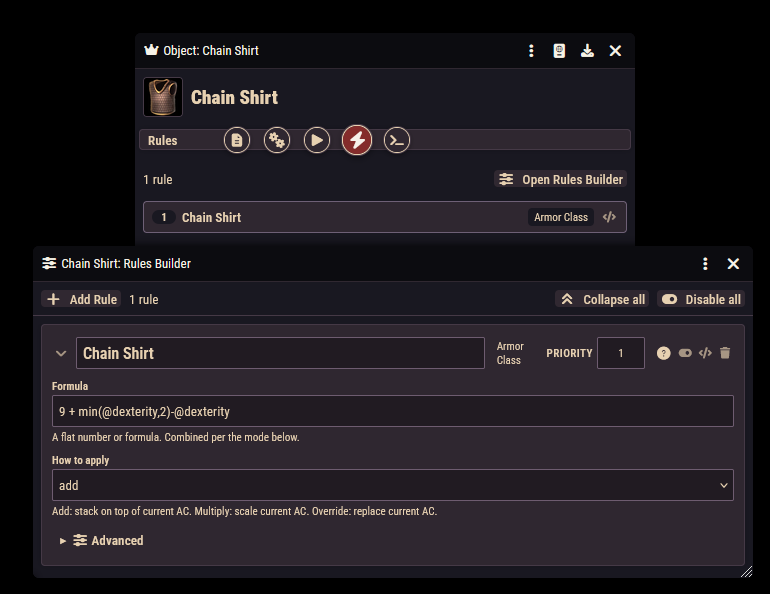
A tour of the builder window
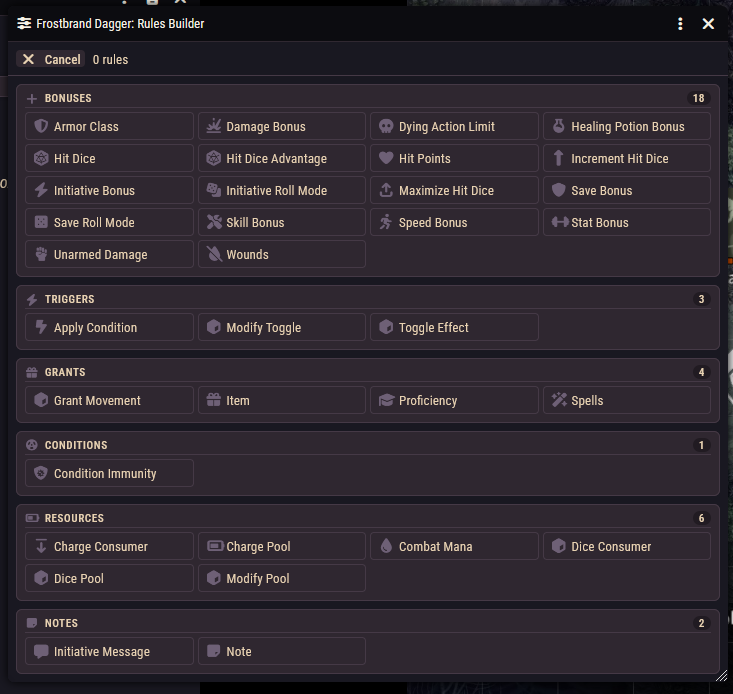
Click Add Rule to open the rule picker. Rule types are organized into six groups:
- Bonuses change a number on the character: stats, skills, saves, armor, speed, hit points, damage, and more.
- Triggers react to events in play, like applying a condition on a critical hit.
- Grants give the character something extra: an item, spells, proficiencies, or a movement type.
- Conditions interact with the condition system, like condition immunity.
- Resources give the item or character a pool to spend: charges, dice, or combat mana.
- Notes add reminders and messages without changing any numbers.
Each entry shows a short description of what it does. Pick one and a new rule card appears.
On each rule card you can:
- Expand or collapse the card with the chevron button. The window header also has expand-all and collapse-all buttons.
- Enable or disable the rule with the toggle button. A disabled rule is kept but does nothing. The header has enable-all and disable-all buttons too.
- Edit raw JSON with the code button, a plain-text view of the rule for power users. You can switch back to the builder at any time.
- Delete the rule with the trash button.
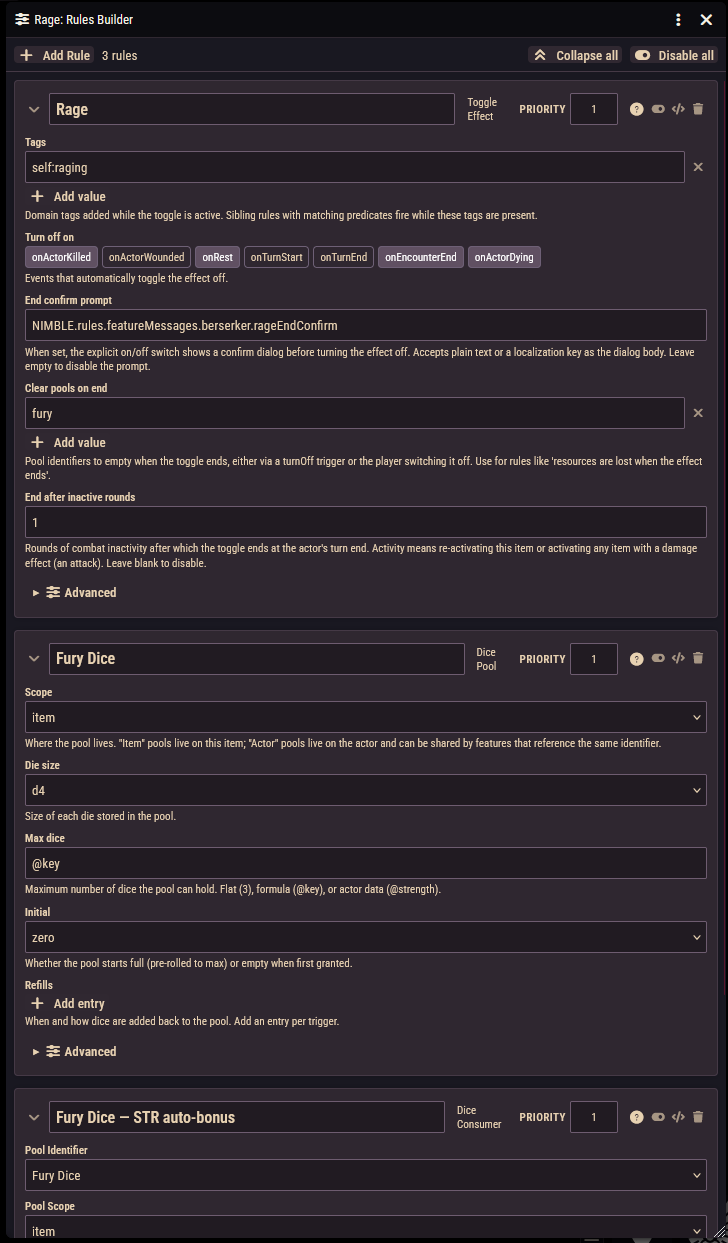
Rules are listed in the order they apply. To reorder a rule, change its Priority number. Dragging cards does not reorder them. Dragging a rule onto another item's rule list copies it there, which is handy when several items share the same effect.
Fields every rule has
Whatever the type, every rule shares a few fields:
- Label: your note to yourself. It names the rule in lists, and a few rule types display it to players as the source of the effect (an Armor Class rule's label shows up in the armor breakdown; a Charge Pool's label names the pool). Write something you will recognize later.
- Identifier: a name other rules can refer to. For example, a Charge Consumer on one feature can spend from an actor-wide Charge Pool that another feature defined, by matching its identifier. It is only editable in the raw JSON view, and most rules can leave it empty.
- The Condition box: found under Advanced as "Applies when". It controls when the rule applies; leave it empty and the rule always applies. See The Condition Box.
- Priority: the application order. Lower numbers apply first. Leave it at the default (1) unless two rules interact and you need one to win. For example, an Armor Class rule set to "override" should have a higher priority number than the rules it is meant to replace.
- Disabled: the on/off toggle described above.
- Suppress activation card: found under Advanced. Controls whether using the item skips its descriptive chat card. Automatic (the default) lets the rule decide; most rules never suppress, but a manual dice spend does, because the spend flow posts its own card. Pick Always for a silent feature whose activation has nothing to say, or Never to keep the card even when the rule would normally suppress it. A card that carries rolls or effects is never skipped, whatever this is set to.
Worked example: Belt of Giant Strength
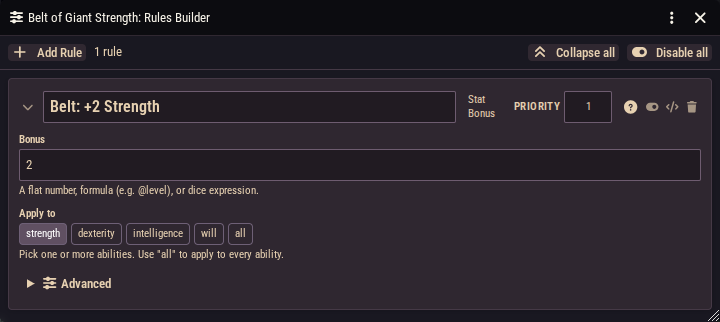
Let's build a magic belt that gives its wearer +2 Strength.
- Create an object item named Belt of Giant Strength and open its sheet.
- Go to the Rules tab and click Open Rules Builder.
- Click Add Rule, and under Bonuses pick Stat Bonus.
- Fill in the card:
- Label →
Belt: +2 Strength - Bonus →
2 - Apply to →
Strength
- Label →
- Leave the Condition box empty so the bonus always applies while the belt is worn.
Drag the belt onto a character, make sure it is equipped, and their Strength rises by 2 on the spot. Take the belt off and it drops again.
TIP
The Bonus field also accepts formulas like @level instead of a plain number; see Formulas & References.
My rule isn't doing anything
Work through this checklist:
- Is the item on a character? Rules only take effect once the item is in a character's possession. Editing an item in the sidebar or a compendium changes the template, not any character.
- Is the item equipped? For gear (object items), equipping and unequipping automatically enables and disables all of the item's rules. An unequipped sword's rules do nothing.
- Is the rule disabled? Check the toggle on the rule card and look for the "Disabled" badge on the Rules tab.
- Does the Condition box match? Open Advanced on the rule card. The preview line tells you whether the conditions currently match this character. See The Condition Box for how to read it.