Running Combat
Combat is where the system does the most work for you. This page walks through a fight from start to finish: rolling initiative, reading the tracker, taking turns, and the special handling for solo monsters and minion hordes.
For how combat works as a game (actions, heroic reactions, what initiative means), see the Nimble rulebook. This page covers what the software does.
Starting a fight
Add your monsters and the party to the combat as you normally would in Foundry (select the tokens and toggle their combat state), then press Begin Combat.
When combat begins, the system automatically:
- Rolls initiative for every character who hasn't rolled yet.
- Sets every monster's actions to full. Monsters don't roll initiative. They simply act after the characters.
- Refreshes every character's heroic reactions.
A character's initiative roll decides how many actions they start their first round with, exactly as in the rulebook: a total of 20 or more grants 3 actions, 10 or more grants 2, and anything less grants 1. The tracker shows these as action pips on each character's card.
Players can roll their own initiative
A player can roll initiative from their character sheet before the fight starts, using the full roll window (advantage, disadvantage, situational modifiers, and roll visibility). If you enable the Auto-Add Character To Combat On Initiative Roll setting, rolling from the sheet also adds the character to the current scene's combat automatically, which is handy for ambushes and late arrivals.
What can modify initiative
Items built with the Rules Builder can change how initiative behaves, and several ship this way out of the box:
- Initiative bonuses add a flat modifier to the roll.
- Initiative roll modes make the character roll with advantage or disadvantage by default.
- Initiative messages whisper a reminder to the player the moment they roll, perfect for "don't forget your feature triggers at the start of combat" notes.
- Combat mana grants are also triggered by the initiative roll (see Combat mana below).
The combat tracker
The Nimble combat tracker sits across the top of the screen and shows one card per combatant, in turn order. Hovering a card highlights its token on the canvas. Character cards show action pips, heroic reactions, and resources; monster cards can show hit point bars and be expanded for a closer look.
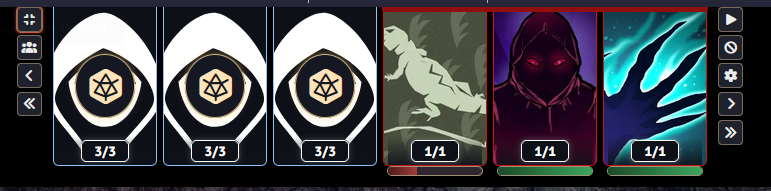
The tracker is heavily customizable: width, card size, colors, hit point bar display, what players are allowed to see, and more. Click the gear button on the tracker to open the Combat Tracker Settings window, and see the Settings Reference for the full list of options rather than hunting for them here.
The Combat System panel
Alongside the tracker there is a separate Combat System panel for GMs, used to run monster and minion attacks quickly. You can show or hide it with the crosshairs button in the token controls, or turn it off entirely with the Enable Combat System setting. It's covered in Minions and hordes below.
Turn order and turns
Turn order in Nimble is simple: all characters act first, then the monsters. Within each group, the order is whatever the tracker shows, and you can drag cards to reorder them. As GM you can reorder anyone; trusted players can reorder their own character.
As the round progresses, the system keeps the bookkeeping straight:
- Defeated combatants are skipped. They drop out of the turn order automatically.
- End of a character's turn: their actions refill and their heroic reactions become available again, ready for the next round of reactions.
- End of the round: every monster's actions reset, and any temporary minion groups dissolve.
- Stepping backwards: if you go back a turn or a round, the system restores the actions of the monster whose turn you return to.
Heroic reactions can be spent straight from the tracker. When a player uses one outside the normal flow (no actions left, already spent this round, or on their own turn), they get a confirmation prompt instead of a hard stop. The rulebook's edge cases stay at the table, not in a settings menu.
Solo monsters get extra turns
A solo monster doesn't take one turn per round. Instead, it takes a turn after every character's turn, automatically. The tracker interleaves these extra turns for you: character, solo monster, character, solo monster, and so on, with any regular monsters and minions acting at the end of the round.
There is nothing to configure. If the actor is a solo monster, it gets the extra turns. See Monsters, Minions & Solo Monsters for when to use each actor type.
Minions and hordes
Rolling eight goblin attacks one at a time is nobody's idea of fun. The Combat System panel rolls them all at once:
- During an active combat, select several minion tokens on the canvas. The panel appears, listing them under Minions.
- Pick each minion's attack from its dropdown (the panel remembers your choice for other minions of the same kind).
- Target one or more character tokens (use targeting, not selection).
- Press Roll, or Roll + End Turn to advance the tracker afterwards.
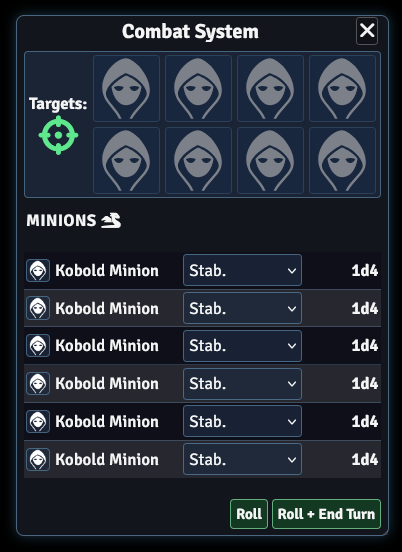
The result is a single chat card: one row per minion showing hit or miss, the total damage at the bottom, and an Apply Damage button so the whole horde's damage lands in one click. Minions with no actions left, or with no action selected, are skipped and listed on the card so nothing silently disappears.
Minions that attacked together are grouped into a single tracker entry that shares one turn for the rest of the round; the group dissolves automatically when the round ends, so next round you're free to split them differently. Grouped minions share the same badge on their canvas tokens.
The panel also has a Monsters section: select a regular monster or solo monster token and you can pick and roll one of its actions directly from the panel, without opening its sheet.
GM only
The Combat System panel and group attacks are GM tools. Players won't see the panel.
Combat mana
Some features, such as the Spellblade's, grant a character mana per combat rather than a permanent pool. These are built with the Rules Builder's combat mana rule, and the system handles the full lifecycle:
- When the character rolls initiative, their mana is set to the granted amount.
- The grant is recorded per combat, so re-rolling or rejoining the same fight won't grant it twice.
- When the combat ends or is deleted, the mana is cleared again.
Nothing for you to track: it appears when the fight starts and vanishes when it's over.
Token adjacency tracking
Some abilities care about how many enemies are next to a creature. If you enable the Auto-Track Token Adjacency setting, the system keeps count for you during active combats: every time a token moves or a turn changes, it records how many enemies are adjacent to each combatant, and which combatant currently has the most adjacent enemies.
Feature rules can then use this in their conditions (the Condition box), with tests like "while two or more enemies are adjacent" or "while I have the most enemies adjacent to me", and the features light up and switch off on the sheet as the battlefield shifts.
Details worth knowing:
- "Enemies" is decided by token disposition: hostile tokens count non-hostile tokens as enemies, and vice versa.
- The companion setting Adjacency Includes Diagonals controls whether corner-to-corner counts as adjacent (on by default).
- Both settings are world settings, apply to the whole table, and require a reload when changed.
- The tracking data is cleared when the combat is deleted, or when you turn the setting off.