Dice Rolls & Chat Cards
Nimble rolls dice a little differently from most systems, and the chat cards are where most of the table action happens. This page covers how attack dice behave, what the roll windows ask you, and what all the buttons on a chat card do.
How Nimble attack dice work
When you attack, the whole damage pool is rolled at once, but only one die decides the outcome: the primary die, the first die of your weapon's base damage. Everything else (sneak attack dice, bonus damage, flat modifiers) just adds to the total.
- Critical hit: the primary die rolls its maximum value. It explodes: the die is rerolled and added to the damage, and keeps going as long as it keeps rolling maximum.
- Miss: the primary die rolls a natural 1. The attack misses no matter what the bonus dice rolled.
- Advantage and disadvantage: each level of advantage adds one extra die to the pool, and the lowest die is dropped before anything else is decided (disadvantage drops the highest instead). Advantage and disadvantage cancel each other out one-for-one, and only the leftover applies.
- Area attacks (anything with a template shape, such as a cone, line, or circle) can neither crit nor miss: one shared roll applies to everyone in the area.
- No proficiency, no crit. If a weapon requires a proficiency you don't have, you can still use it, but it won't crit. Minions never crit.
Because advantage is resolved first, a natural 1 that gets dropped by advantage does not cause a miss. The primary die is whichever die survives the drop.
Some special abilities roll pools where several dice can each crit independently, or where no die can crit or miss at all; the system handles those automatically based on how the item was built.
The roll window
Clicking an ability, skill, saving throw, or initiative on your sheet opens a roll window before anything hits chat:
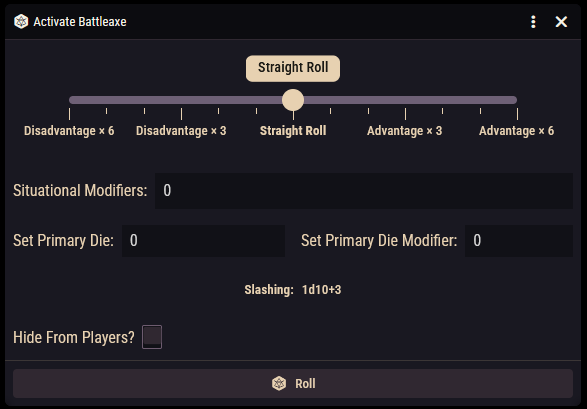
- The advantage slider. Drag from Disadvantage ×6 through Straight Roll up to Advantage ×6. The formula preview below updates live so you can see exactly what will be rolled.
- Hide roll (GMs only). Ticking this makes the roll a blind roll that other players can't see.
- Roll. Sends the result to chat.
Saving throws can start with the slider already offset: each save has a default roll mode that comes from your class and ancestry. You can review or change these defaults from the saving throw configuration window on the sheet's Core tab (with editing enabled), which also offers a reset button that recalculates the defaults from your class and items.
Hide Rolls by Default
If you're a GM who usually rolls in secret, turn on the Hide Rolls by Default setting. The hide checkbox will then start ticked in every roll window. See the Settings Reference.
Attacks and spells cast from the sheet go through their own activation flow and post a card directly.
Anatomy of a chat card
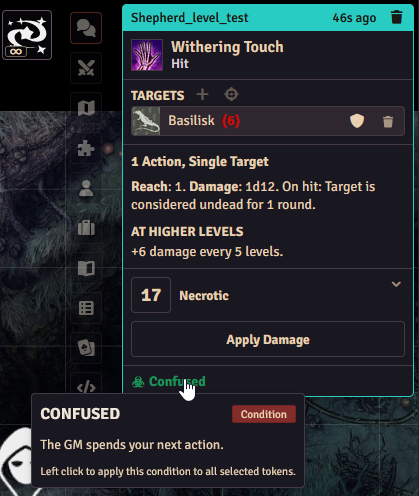
An attack or spell card is built from a few recurring pieces:
- Header and outcome. The card names the item used, and the subheading calls out Critical Hit or Miss when the primary die decided one.
- Roll summaries. Each damage or healing roll shows its total in a box, with a damage type label. Click the arrow beside it to expand the individual dice; hovering the total shows the same breakdown as a tooltip. Below the dice you can see the primary die's value and modifier.
- Apply Damage (GMs only). Applies the damage to the card's targets. If a target takes less than the rolled total, from a damage reduction rule, a monster's resistances or immunities, or a pending one-shot reduction from a feature like the Berserker's "That all you got?!", the reduced number is what lands, and the card lists each reason per target under Reduced Damage. The button stays available even when reduction absorbs the whole hit, and is disabled only when there's nothing to apply, for example on a miss.
- Targets. Tokens targeted when the roll was made are listed on the card. Buttons in this section let you add the currently selected or currently targeted tokens as targets, or remove targets, so a GM can fix up targeting after the roll. Hostile targets are highlighted so it's obvious when you're about to damage the wrong side.
- Save prompts. If the item forces a saving throw, the card shows the save with a d20 button: select the tokens that need to save and click it to roll the save for each of them. The card lists what happens on a failed and a successful save.
- Condition buttons. Conditions the item inflicts appear as buttons. Click one to apply the condition to all selected tokens. See Conditions.
Targeting
Target tokens (default key: T) before you roll and they'll appear on the card automatically. Forgot? Use the card's target buttons to add the tokens afterwards. Damage application and save prompts work off the card's target list, not whatever is selected when the GM clicks Apply.
Roll visibility
Two per-player settings shape what you see in chat:
- Auto-Expand Rolls: always show the dice breakdown under each roll total instead of requiring a click.
- Hide Rolls by Default: start every roll window with the GM's hide checkbox ticked.
Both are described in the Settings Reference.