Item Activations & Effects
An activation is everything that happens when a player clicks an item: what it costs, what it targets, what it rolls, and what shows up on the chat card. This is the most powerful part of the item sheet, so this page teaches it through two builds:
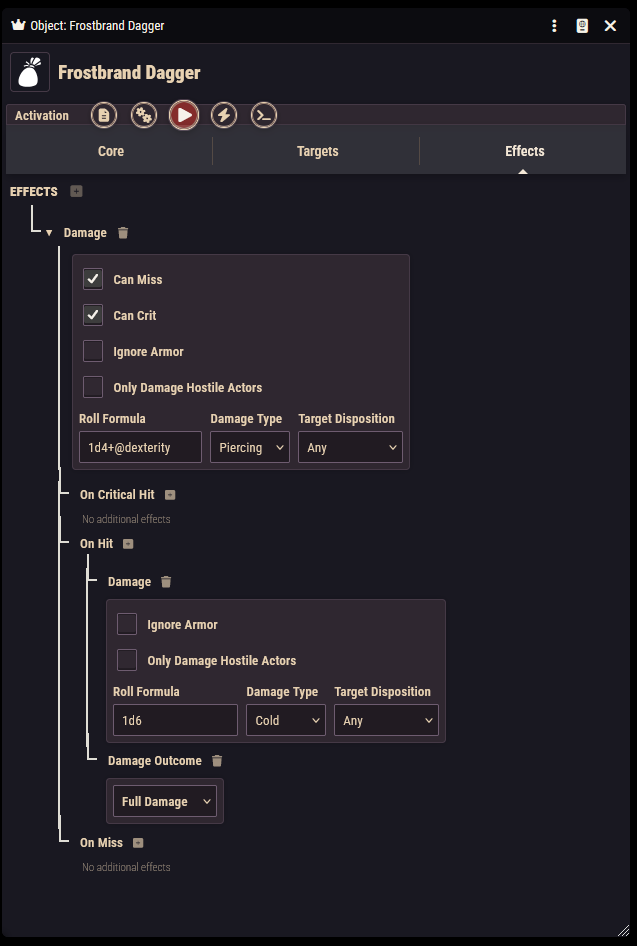
- Frostbrand Dagger: a weapon that deals 1d4 + Dexterity piercing damage and, only on a hit, an extra 1d6 cold damage.
- Ghostwalk Draught: a potion that heals 1d4 + 2 and turns the drinker Invisible.
The Activation tab appears on objects, spells, features, and monster features, and is split into three sub-tabs: Core, Targets, and Effects.
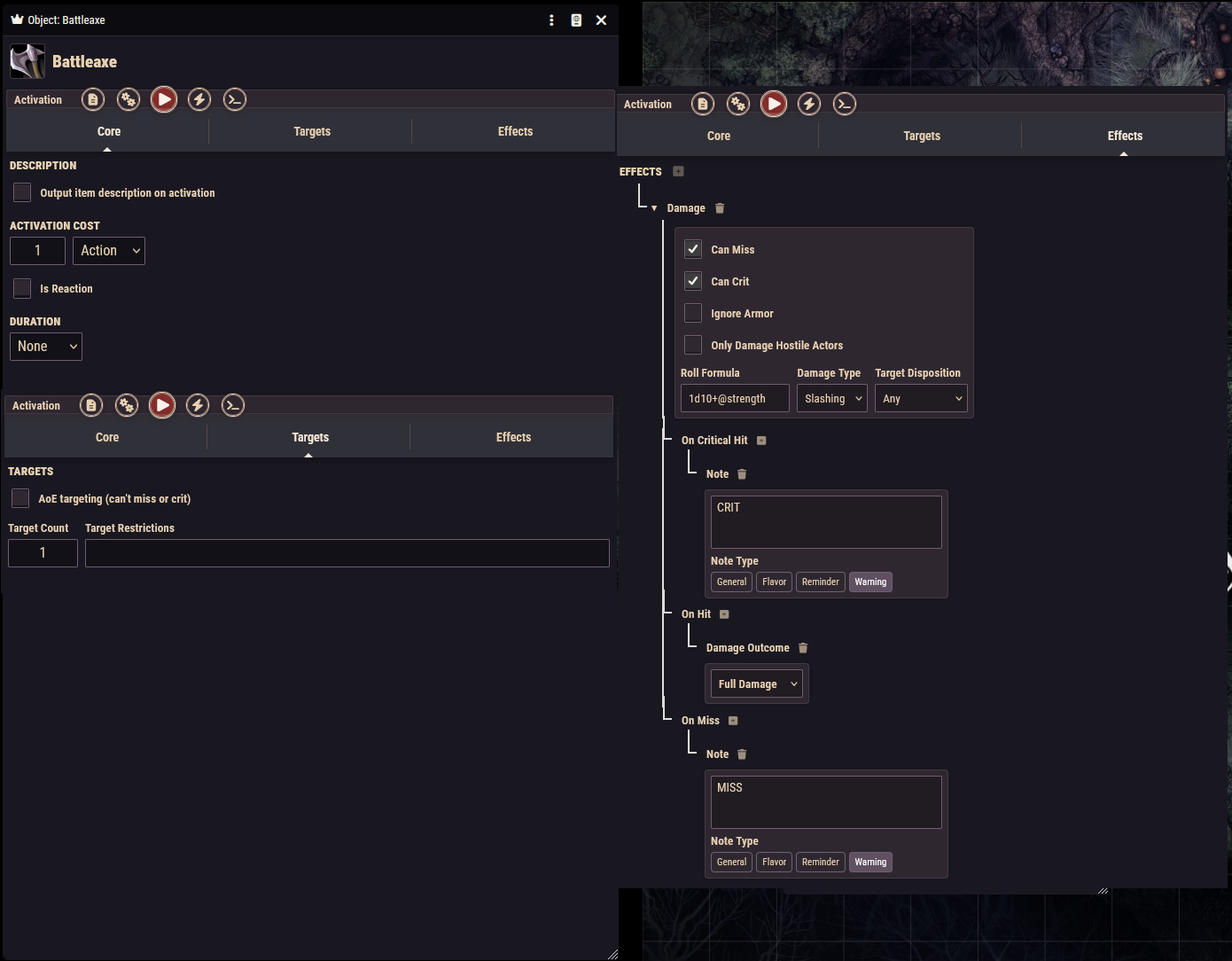
The Core sub-tab
- Output item description on activation: when ticked, the item's description text is printed on the chat card.
- Activation Cost is a number plus a unit: Action, Minute, Hour, None, Special, or Turn. The number field only appears for actions, minutes, and hours. Choosing Special reveals a free-text details field.
- Is Reaction marks the activation as a reaction and reveals a Reaction Trigger text field ("when an enemy leaves your reach…").
- Duration: a number plus a unit (Action, Minute, Hour, None, Round, Turn, Special), with a details field for special durations.
Monster features are simpler
Monster feature sheets hide the Activation Cost section. A monster's action economy is handled on the monster side instead. Their Targets sub-tab gains extra fields; see below.
The Targets sub-tab
- AoE targeting (can't miss or crit): tick this for area effects. A template configuration appears where you pick a shape (circle, cone, emanation, line, or square) and its dimensions. Attacks resolved through a template share one roll across everyone caught in it, so they can neither miss nor critically hit.
- Target Count: how many targets the item expects (hidden when AoE targeting is on).
- Target Restrictions: free text shown to the user, such as "creatures that can hear you".
On monster features only, an Attack Type dropdown (None / Reach / Range) and a Distance field describe the attack's reach for the stat block.
The Effects sub-tab: the effect tree
Effects are built as a tree. Click the + button next to Effects to add a top-level entry: Damage, Healing, Condition, Pool, or Save. Damage and Save entries can then hold child effects that trigger on specific outcomes.
Damage
A damage entry has a Roll Formula (dice plus references like @strength or @key), a Damage Type (fire, slashing, and so on), and a Target Disposition dropdown (Any / Friendly / Neutral / Hostile / Secret) that tells the chat card who the roll is meant for. Two checkboxes refine it: Ignore Armor and Only Damage Hostile Actors.
The first damage entry in the list is special: it is the attack roll. It alone shows the Can Miss and Can Crit checkboxes, and its result decides whether the whole card reads as a hit, a miss, or a critical hit.
When crits are suppressed
Even with Can Crit ticked, some attacks never crit: template (AoE) attacks, attacks made by minions and flunkies, and attacks with a weapon whose type the wielder is not proficient with.
Under a damage entry you get three outcome buckets: On Critical Hit, On Hit, and On Miss. Each bucket can hold child effects: more damage, a damage outcome, healing, a condition, a saving throw, or a note.
- Damage Outcome declares what the parent roll deals in that bucket: Full Damage or Half Damage. The stock longsword, for example, has a Damage Outcome of Full Damage under On Hit.
- Note: a text callout on the chat card with a style of General, Flavor, Reminder, or Warning.
Healing
A healing entry has a Roll Formula, a Healing Type (Healing or Temporary Healing), and a Target Disposition. On consumable objects, healing formulas are automatically increased by any healing-potion-bonus rules the drinker has.
Save
A save entry prompts a saving throw: pick the Save Type (Strength, Dexterity, Intelligence, or Will) and optionally a Custom Save DC. It has three sections:
- Shared Rolls: damage that is rolled once and then split by the outcome. Add a damage entry here, then put Damage Outcome entries under On Failed Save (Full Damage) and On Passed Save (Half Damage) for the classic "half on a save" pattern.
- On Failed Save / On Passed Save are buckets for child effects: damage, healing, conditions, or notes.
Condition
A condition entry picks one status condition from the system's list (Frightened, Poisoned, Prone…). It renders as a labeled button on the chat card.
Pool
An advanced entry that manipulates a dice pool or charge pool when the item activates: pick the Pool Type (Dice Pool or Charge Pool) and an Action (Roll Die, Roll Pool, Fill Count, Clear, or Maximize Lowest Die), plus the pool's identifier and a value. The Predicate (JSON) field lets the entry apply only when a condition test passes, using the same syntax as the Condition box, for example { "level": { "min": 5 } }. Pools themselves are created with rules; see the resources reference.
Maximize Lowest Die raises the lowest Value dice in a dice pool to the die's highest face, and reports on the card when there was nothing to raise (an empty pool, or every die already at maximum). It acts on its own with no player input, which suits a feature that always maximizes. When the rules text lets the player choose which die, use a Dice Consumer rule with its selection outcome set to maximize instead: that opens the dice panel and lets them pick. See the resources reference.
Pool entries only take effect once the activation is allowed to proceed, so an item gated by a charge that has run out changes nothing.
Build A: the Frostbrand Dagger
- Create an Object, set Object Type to Weapon, and pick your weapon properties.
- On Activation → Core, set the cost to 1 Action.
- On Activation → Effects, add a Damage entry: formula
1d4+@dexterity, type Piercing, Can Miss and Can Crit ticked. - Under that entry's On Hit bucket, click + and add a Damage Outcome of Full Damage. This is the weapon's own damage landing.
- In the same On Hit bucket, add a second Damage entry: formula
1d6, type Cold.
The placement is the point: because the cold damage sits under On Hit, it only appears on the chat card when the attack hits. If you instead added it as a second top-level entry (like the Flaming Longsword on the items page), it would be rolled and shown regardless of the attack outcome.
Build B: the Ghostwalk Draught
- Create an Object and set Object Type to Consumable (size 0.5 slots is the potion convention).
- On Activation → Core, set the cost to 1 Action and leave the description output on.
- On Activation → Effects, add a Healing entry: formula
1d4+2, type Healing. - Add a top-level Condition entry and pick Invisible.
Because the item has a healing effect, drinking it with no target selected automatically targets the drinker's own token.
What the player sees
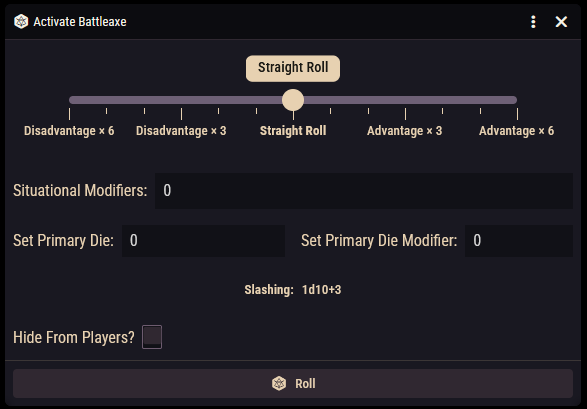
The roll window. If the activation contains any damage or healing, clicking the item opens a roll window first (spells always get one; see Spells). It offers:
- a roll mode selector (advantage / disadvantage),
- a Situational Modifiers field for one-off bonuses like
1d4, - fields to preset the primary die and its modifier (useful for handling table rulings),
- if the character has spendable dice or charge pools, a section to click individual rolled dice or step charges to add to the roll,
- a live preview of each damage formula with references filled in,
- for GMs activating a non-player-character item, a Hide roll checkbox that whispers the card to GMs only,
- a Roll button.
Holding Alt while clicking the item skips the window and rolls with defaults.
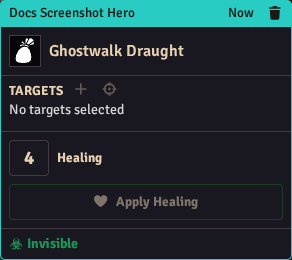
The chat card. After rolling, a card is posted with:
- the item's image, name, and (if enabled) description,
- a targets row: targets you had marked when activating are listed, and buttons let anyone add currently selected or targeted tokens as targets afterwards,
- each damage roll as a summary line with the total, an expandable breakdown, and an Apply Damage button that applies it to the card's targets (on a miss the roll is still shown but the apply button is disabled; half-damage outcomes halve the total),
- each healing roll with an Apply Healing button and an undo button after use,
- each saving throw section with a d20 button that rolls that save for all currently selected tokens, plus its "On Failed Save" / "On Successful Save" contents,
- each condition as a button that applies the condition to all selected tokens when clicked,
- any notes, styled by their note type.
The Macro tab
Every item also has a Macro tab where advanced users can attach a script that runs on activation instead of, or alongside, the standard flow. See Macros.